
Memoization, refs, context and tables
In this lesson, we will look at how React decides what to re-render and at the tools it gives us to influence that — useCallback, useMemo and memo — and at the React Compiler, which makes most manual memoization unnecessary. We will then discuss useRef and how refs are passed into our own components, which is something you will need when building your own component library. Next, we will look at Context, which lets us share a value with a whole subtree of components without passing it through props. Finally, we'll look at creating and working with tables using the external TanStack Table library.
useCallback, useMemo, memo
Everything in this section describes memoization done by hand. Since the React Compiler became stable, you should rarely need to write any of it yourself — see the React Compiler section at the end. We still go through it, because you need to understand what the compiler automates and why React re-renders in the first place, and because you will meet manual memoization in many existing codebases.
useCallback
useCallback is a hook that returns a memoized version of a callback function. This means that as long as the values in its dependency array do not change, the function is not recreated on re-render. This can be useful if the function is passed to another component that would otherwise be re-rendered on each render. As discussed in the last lesson, we know we have types in JS that are passed by reference, not by value. These include objects and arrays, among others. If we define an arrow function inside a component, it is also an object.
So, if we pass this function to another component, this component will be re-rendered every time a new function is passed. This may be undesirable if this component contains more complex logic or the passed function is part of another dependency array.
function Child({ onChange }: { onChange: () => void }) {
  console.log('rendering child');

  return (
    <div>
      <button onClick={onChange}>Change</button>
    </div>
  );
}

function Parent() {
  console.log('rendering parent');

  const [value, setValue] = useState('');
  const [childClicksCount, setChildClicksCount] = useState(0);

  const onChange = () => {
    console.log('Calling onChange');
    setChildClicksCount(childClicksCount + 1);
  };

  return (
    <div>
      <input
        onChange={e => {
          setValue(e.target.value);
        }}
        value={value}
      />
      <Child onChange={onChange} />
      <div>Child clicks count: {childClicksCount}</div>
    </div>
  );
}
In the code above, every time the value in the Parent component changes,
the Parent is re-rendered because its state has changed. However, it also
renders Child since its onChange property has changed. Better said,
onChange has not changed, but it is a new instance of a function that is
created when the Parent component is re-rendered and then passed to the
Child component.
The onChange function does not need to be recreated every time the value changes, but only when the childClicksCount state changes. For a better illustration, we can add a "heavy" operation to the Child component, so that every render caused by a change of value is blocked by rendering the Child component. For testing purposes, we can represent the heavy operation as follows, for example:
for (let i = 0; i < 1e9; i++) {
  // Heavy computation
}
When typing in the text box, we see that the Child component has to re-render itself every time a letter is typed, which blocks the whole UI and is unpleasant for the user. We would avoid this behavior if we could prevent the Child component from re-rendering.
function Child({ onChange }: { onChange: () => void }) {
  console.log('rendering child');

  heavyOperation();

  return (
    <div>
      <button onClick={onChange}>Change</button>
    </div>
  );
}

function Parent() {
  console.log('rendering parent');

  const [value, setValue] = useState('');
  const [childClicksCount, setChildClicksCount] = useState(0);

  // Only re-create 'onChange' when 'childClicksCount' changes
  const onChange = useCallback(() => {
    console.log('Calling onChange');
    setChildClicksCount(childClicksCount + 1);
  }, [childClicksCount]);

  return (
    <div>
      <input
        onChange={e => {
          setValue(e.target.value);
        }}
        value={value}
      />
      <Child onChange={onChange} />
      <div>Child clicks count: {childClicksCount}</div>
    </div>
  );
}
In this case, we have already ensured that the onChange function will not be
recreated every time the value is changed, so we send a stable reference to
the same function to the Child component.
The way React works is that if a Parent needs to be re-rendered, all its children are re-rendered, regardless of whether their properties have changed. We can prevent this behavior by using memo.
memo
memo is a function that returns a memoized version of a component. This means that if the properties of the component do not change, the component will not be rendered again.
Overusing memo can cause performance problems rather than prevent them! At the same time, using memo the right way can be non-trivial in many cases.
function Child({ onChange }: { onChange: () => void }) {
  console.log('rendering child');
  heavyOperation();

  return (
    <div>
      <button onClick={onChange}>Change</button>
    </div>
  );
}

const MemoizedChild = memo(Child);

function Parent() {
  console.log('rendering parent');

  const [value, setValue] = useState('');
  const [childClicksCount, setChildClicksCount] = useState(0);

  const onChange = useCallback(() => {
    console.log('Calling onChange');
    setChildClicksCount(childClicksCount + 1);
  }, [childClicksCount]);

  return (
    <div>
      <input
        onChange={e => {
          setValue(e.target.value);
        }}
        value={value}
      />
      <MemoizedChild onChange={onChange} />
      <div>Child clicks count: {childClicksCount}</div>
    </div>
  );
}
In this case, we have already achieved what we asked for. The Child
component is not rendered every time the value changes, but only when the
childClicksCount state has changed.
Generally, it is better to use memo only when there is no other way to prevent re-rendering the component. In our case, there is another option, namely, using the composability of React.
function Child({ onChange }: { onChange: () => void }) {
  console.log('Child rendering');
  // ...
}

function ChildClicksCounter() {
  console.log('Child clicks counter rendering');

  const [childClicksCount, setChildClicksCount] = useState(0);

  return (
    <>
      <Child onChange={() => setChildClicksCount(childClicksCount + 1)} />
      <div>Child clicks count: {childClicksCount}</div>
    </>
  );
}

function Parent({ children }: PropsWithChildren<object>) {
  console.log('rendering parent');

  const [value, setValue] = useState('');

  return (
    <div>
      <input onChange={e => setValue(e.target.value)} value={value} />
      {children}
    </div>
  );
}

export default function Home() {
  return (
    <Parent>
      <ChildClicksCounter />
    </Parent>
  );
}
Alternatives to memo may be the general techniques of "moving state down" or "lifting content up." In this case, we have moved the childClicksCount state out of the Parent component into a new ChildClicksCounter component. This component is sent to the Parent component as children. This way, if the value state changes in the parent, the children property will not be re-rendered since the children remain the same.
Reach for composition before you reach for memoization. Unlike memo, this
solution cannot be silently broken by a caller passing a new object, and it
keeps working no matter what the parent does.
useMemo
useMemo works on a similar principle as useCallback. It returns a memoized value, typically an array or object that is created by some more complex operation. An example might be a filtered array or an object created based on another object, and this transformation is a complex operation.
function PersonTable({ data, filter }: { data: string[]; filter: string }) {
  console.log('rendering PersonTable');

  const filteredData = useMemo(() => {
    console.log('computing filteredData');
    // Simulate heavy computation
    heavyOperation();

    return data.filter(person => person.includes(filter));
  }, [data, filter]);

  const [query, setQuery] = useState('');

  return (
    <div>
      <input value={query} onChange={e => setQuery(e.target.value)} />
      <table>
        <tbody>
          {filteredData.map(person => (
            <tr key={person}>
              <td>{person}</td>
            </tr>
          ))}
        </tbody>
      </table>
    </div>
  );
}
In this case, we store the filtered data in useMemo so that we don't have to
filter the data again every time we change query. This way we achieve that
filteredData is not created every time the component is rendered, but only
when either data or filter is changed.
If we had a separate component for rendering the table, the same rules as for useCallback would apply, i.e. we would have to memoize the table component using memo.
function PersonTable({ data }: { data: string[] }) {
  console.log('rendering PersonTable');

  return <table>{/* ... */}</table>;
}

const MemoizedPersonTable = memo(PersonTable);

function PersonModule({ data, filter }: { data: string[]; filter: string }) {
  console.log('rendering PersonModule');

  const filteredData = useMemo(() => {
    console.log('computing filteredData');
    // Simulate heavy computation
    heavyOperation();

    return data.filter(person => person.includes(filter));
  }, [data, filter]);

  const [query, setQuery] = useState('');

  return (
    <div>
      <input /* ... */ />
      <MemoizedPersonTable data={filteredData} />
    </div>
  );
}
This way, we achieved that if the table were a more complex component, it
would only be re-rendered if the data property changed, which is a memoized
component that changes if the incoming data or filter changes.
Unfortunately, in this case, it is very easy to make a very small change and break this behavior.
function PersonTable({ data }: { data: string[] }) {
  console.log('rendering PersonTable');

  return <table>{/* ... */}</table>;
}

const MemoizedPersonTable = memo(PersonTable);

function PersonModule({ data, filter }: { data: string[]; filter: string }) {
  console.log('rendering PersonModule');

  const filteredData = useMemo(() => {
    console.log('computing filteredData');
    // Simulate heavy computation
    heavyOperation();

    return data?.filter(person => person.includes(filter));
  }, [data, filter]);

  const [query, setQuery] = useState('');

  return (
    <div>
      <input /* ... */ />
      <MemoizedPersonTable data={filteredData ?? []} />
    </div>
  );
}
We changed a seemingly small thing, namely that the PersonModule component
can receive undefined data, in which case we send an empty array [] to the
PersonTable. However, this array is a new instance on every render, so it is
no longer memoized and it causes the memoization with memo to stop working.
function PersonTable({ data }: { data: string[] }) {
  console.log('rendering PersonTable');

  return <table>{/* ... */}</table>;
}

const MemoizedPersonTable = memo(PersonTable);

function PersonModule({ data }: { data: string[] }) {
  console.log('rendering PersonModule');

  return (
    <div>
      {/* We can't be sure here, if 'data' are memoized in parent component */}
      <MemoizedPersonTable data={data} />
    </div>
  );
}

export default function Home() {
  const [query, setQuery] = useState('');

  return (
    <main className="container py-10">
      <input /* ... */ />

      {/* Passing new instance of array every render, causing
      re-rendering of PersonTable everytime 'query' change */}
      <PersonModule data={[/* ... */]} />
    </main>
  );
}
At the same time, if a component receives some data via props and sends this
data to a component that needs to be memoized, it cannot be sure whether the
data in props is memoized in the parent component or not.
For more details and examples, we recommend reading the blog post by Dominik Dorfmeister.
React Compiler
Everything above is a compromise. Memoization has to be applied by hand, it has to be applied consistently across the whole chain of components, and — as the examples show — a one-line change somewhere else in the tree silently undoes it. React was never happy with that, which is why it built a different solution: the React Compiler.
The React Compiler is a build-time tool that analyses your components and inserts the memoization for you. It works out on its own which values and which components need to be memoized and when they need to be recomputed, so you get the benefits of useCallback, useMemo and memo without writing any of them, and without the risk of breaking the chain from a distance.
The compiler is now stable and is used in production. The recommendation for new code is to let the compiler do the memoization and to reach for useMemo / useCallback only as an escape hatch where you need precise control — the typical example being a value used as an effect dependency, where you want to guarantee the effect does not fire again.
There is a catch: the compiler can only optimize code that follows the Rules of React, discussed in the hooks lecture. Components must be pure, props and state must not be mutated, and hooks must be called unconditionally. This is another reason why these rules matter — if you break them, the compiler has to bail out of optimizing that component.
This does not make the previous sections useless. You still need to understand why a component re-renders, what referential equality is, and what the compiler is doing on your behalf — otherwise you cannot reason about performance at all. You will also keep meeting hand-written memoization in existing codebases.
For details on enabling and configuring it, see the React Compiler documentation. In our projects, we specifically need the Next.js reference.
Refs
useRef
The useRef is one of the hooks in React that allows you to access DOM element references or store arbitrary values across the lifecycle of a component without causing it to re-render. It is useful in several different scenarios:
Access to DOM elements
In some cases it is necessary to be able to manipulate DOM elements directly, for example <input> or <div>. In React, this is done using the ref attribute, which is passed to the component. For example, if we wanted to set the focus to input when the component is loaded, we could do this:
function App() {
  const inputRef = useRef<HTMLInputElement | null>(null);

  useEffect(() => {
    inputRef.current?.focus();
  }, []);

  return <input ref={inputRef} />;
}
Storage of values
The useRef can also be used to store values. This is useful when the change of the value does not need to be reflected in the resulting JSX. This applies for example to the <input> tag, where we can store the value of the input in a ref and retrieve this value from ref.current when we submit the form.
function App() {
  const nameRef = useRef<HTMLInputElement>(null);

  return (
    <form
      onSubmit={e => {
        e.preventDefault();
        const name = nameRef.current?.value;
        console.log(name);
      }}
    >
      <input ref={nameRef} />
      <button type="submit">Submit</button>
    </form>
  );
}
This may be preferable to using useState to maintain the current value of
the input tag, since changing the ref value does not cause the component
to re-render.
The ref can also store less common values, such as the ID of an interval that performs an action every second.
function TimerComponent() {
  const intervalRef = useRef<ReturnType<typeof setInterval> | null>(null);

  useEffect(() => {
    intervalRef.current = setInterval(() => {
      console.log('Timer tick');
    }, 1000);

    return () => {
      if (intervalRef.current) {
        clearInterval(intervalRef.current);
      }
    };
  }, []);

  return null;
}
Note the explicit type. Calling useRef() with no argument and no type
parameter gives you a ref whose current is typed as undefined, which
TypeScript will not let you assign to.
Passing a ref to your own component
Sometimes we want to access, from a parent component, a DOM element that is rendered inside a child component. Since React 19, ref is an ordinary prop — you declare it in the component's props and pass it down to the DOM element like any other value.
type FancyButtonProps = ComponentProps<'button'>;

function FancyButton({ children, ref, ...props }: FancyButtonProps) {
  return (
    <button ref={ref} {...props}>
      {children}
    </button>
  );
}

function Home() {
  const ref = useRef<HTMLButtonElement>(null);

  return (
    <>
      <button
        onClick={() => {
          console.log('Regular button clicked!');
          ref.current?.click();
        }}
      >
        Regular button
      </button>

      <FancyButton
        ref={ref}
        onClick={() => {
          console.log('Fancy button clicked!');
        }}
      >
        Fancy button
      </FancyButton>
    </>
  );
}
In the Home component we define a ref, which we then send to the
FancyButton component. This allows us to control the FancyButton in the
Home component using its reference and, for example, trigger its click.
Using ComponentProps<'button'> for the props means ref is already part of
the type, together with every other native <button> attribute.
Before React 19, this was not possible directly — a component could not receive
refas a prop and had to be wrapped in theforwardReffunction. You will still run intoforwardRefin older codebases and in libraries that have not migrated yet. It keeps working, but it is deprecated and should not be used in new code.
In combination with some component libraries, it is essential that a component forwards its ref in order to work properly. An example is the Dialog component from Radix UI. When using this library, Radix provides us with a set of predefined components that need to be put together.
import * as Dialog from 'radix-ui/react-dialog';

export default () => (
  <Dialog.Root>
    <Dialog.Trigger />
    <Dialog.Portal>
      <Dialog.Overlay />
      <Dialog.Content>
        <Dialog.Title />
        <Dialog.Description />
        <Dialog.Close />
      </Dialog.Content>
    </Dialog.Portal>
  </Dialog.Root>
);
The Dialog.Trigger is configured by the library so that event handlers are defined on it to open the dialog. We only need to provide this component's children, and this trigger will automatically open the dialog. The problem occurs when we want to use some custom component as the trigger.
function MyDialog() {
  return (
    <Dialog.Root>
      <Dialog.Trigger>Dialog trigger</Dialog.Trigger>
      <Dialog.Portal>
        <Dialog.Overlay />
        <Dialog.Content>Dialog content</Dialog.Content>
      </Dialog.Portal>
    </Dialog.Root>
  );
}
In this case the Trigger works fine, since we are not using a custom
component for the button/trigger.
function MyDialog() {
  return (
    <Dialog.Root>
      <Dialog.Trigger asChild>
        <button>Dialog trigger</button>
      </Dialog.Trigger>
      ...
    </Dialog.Root>
  );
}
We can use custom components like Trigger, which is a relatively common use case because our application probably has some Button component defined that is used in multiple places in the application. In this case, we are just using a plain <button> tag and in this case everything works as it should.
function Button({ children }: PropsWithChildren) {
  return <button>{children}</button>;
}

function MyDialog() {
  return (
    <Dialog.Root>
      <Dialog.Trigger asChild>
        <Button>Dialog trigger</Button>
      </Dialog.Trigger>
      ...
    </Dialog.Root>
  );
}
In this case the dialog trigger will not work. We do send a button as children for Dialog.Trigger, but as a custom component that does not pass a ref down to the DOM <button> element. To fix this, the Button component has to accept ref as a prop and pass it to the <button> element.
function Button({ children, ref, ...props }: ComponentProps<'button'>) {
  return (
    <button ref={ref} {...props}>
      {children}
    </button>
  );
}

function MyDialog() {
  return (
    <Dialog.Root>
      <Dialog.Trigger asChild>
        <Button>Dialog trigger</Button>
      </Dialog.Trigger>
      ...
    </Dialog.Root>
  );
}
Context
Why global state
While having components self-sufficient and not relying on their surroundings is great, there are cases where you need to share some data across your whole application. Some examples may include user preferences, your app theme, translations, or a backend data cache.
Prop drilling
Let's say that our application must be translated into English and Czech. The whole application has to know whether to output Czech or English texts. Last but not least, we need a component allowing the user to switch between languages. If we did not use Context or another form of global state, we would have to pass the language information to all components that need it. This would mean passing a language prop from the root component down to every component that needs it — through components that have no use for it themselves. This problem is called prop drilling and it is one of the main reasons why global state is used.
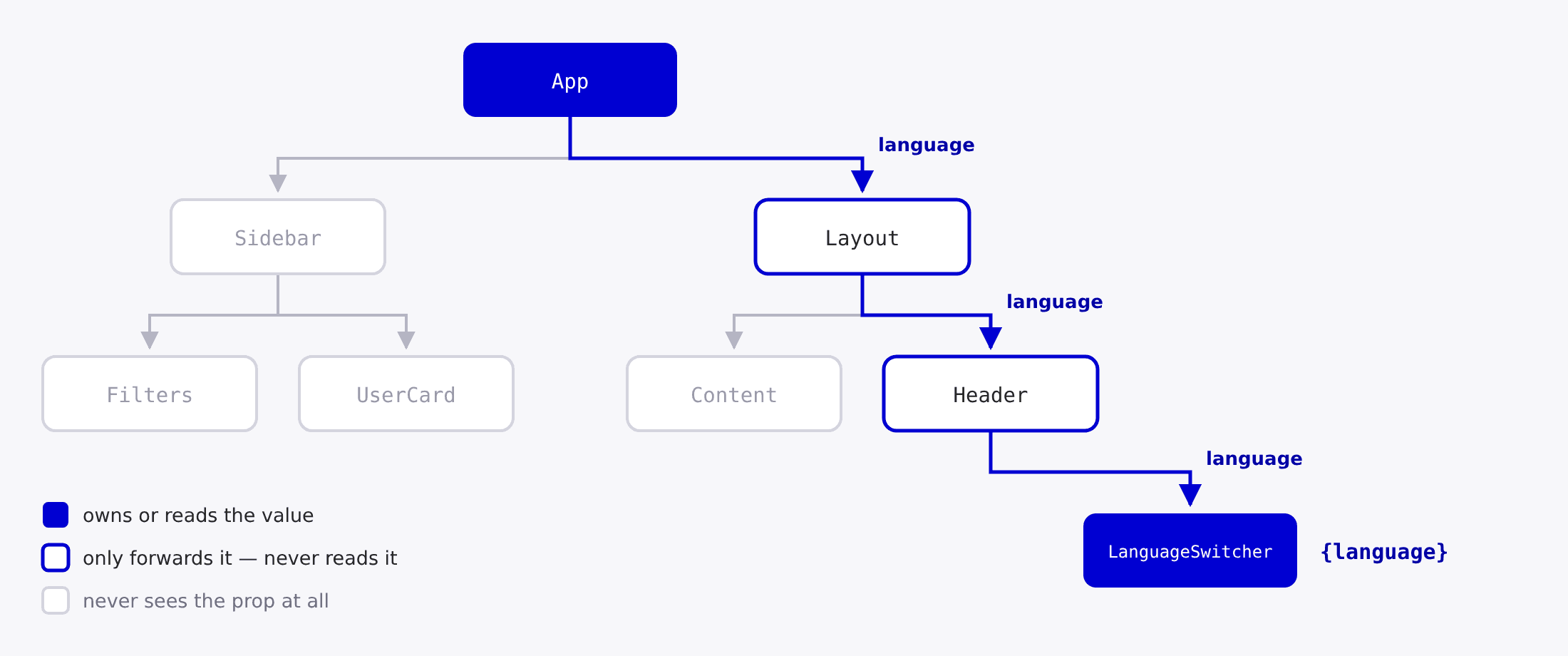
createContext, Provider, useContext
Context is used to store values that are global for the scope we define. This scope can be, for example, the whole application or just some part of it. It is useful when we need to pass a value to several components that are not in a direct parent-child relationship.
To create a context, we use the createContext function. The context itself can be rendered as a component — everything inside it has access to the value we pass to its value prop.
type UserContextType = {
  name: string;
  age: number;
};

const UserContext = createContext<UserContextType | null>(null);
For each context, we define its type, which is actually the value we want to share. This type can contain any values, just like the props of a component.
We use the created context to create a provider that wraps all components that should have access to the value. This provider can wrap any number of components. If it is a global application state, it can be directly in the root component of the application. If it is a context that maintains information about, for example, a form, it will wrap only the components that relate to that form.
type UserContextType = {
  name: string;
  age: number;
};

const UserContext = createContext<UserContextType | null>(null);

function UserContextProvider({ children }: PropsWithChildren) {
  const [user, setUser] = useState({ name: 'John', age: 25 });

  return <UserContext value={user}>{children}</UserContext>;
}
Since React 19, you render the context itself as the provider — <UserContext value={...}>. In older code you will see <UserContext.Provider value={...}>, which still works but is deprecated. You may also come across
Context.Consumer; it has been superseded by the useContext hook and should
not be used in new code.
Typically, a new component is created as the provider, which takes care of what value is sent to the context. In this case, we create a user state, which is then passed down.
Last, we miss the ability to access the user value from components that are inside the UserContextProvider. We do this by using the useContext hook, which returns the value that was passed to the provider.
type UserContextType = {
  name: string;
  age: number;
};

const UserContext = createContext<UserContextType | null>(null);

function UserContextProvider({ children }: PropsWithChildren) {
  const [user, setUser] = useState({ name: 'John', age: 25 });

  return <UserContext value={user}>{children}</UserContext>;
}

function UserDetails() {
  const user = useContext(UserContext);

  return (
    <div>
      <h2>User Details</h2>
      <p>Name: {user?.name}</p>
      <p>Age: {user?.age}</p>
    </div>
  );
}

export default function Home() {
  return (
    <UserContextProvider>
      <UserDetails />
    </UserContextProvider>
  );
}
By using the useContext hook, which takes UserContext as its parameter, we get the user value and can work with it further. The problem is that the value of the context is defined as UserContextType | null because of defining createContext with the initial value null.
This is because if we tried to access UserContext from a component that is not wrapped by Provider, we would get null. On the other hand, from a DX perspective, it would be better for us to get the UserContextType from components that are wrapped by Provider and not have to worry about the null value.
type UserContextType = {
  name: string;
  age: number;
};

const UserContext = createContext<UserContextType | null>(null);

function useUserContext() {
  const user = useContext(UserContext);

  if (!user) {
    throw new Error('useUserContext must be used within a UserContextProvider');
  }

  return user;
}

function UserContextProvider({ children }: PropsWithChildren) {
  const [user, setUser] = useState({ name: 'John', age: 25 });

  return <UserContext value={user}>{children}</UserContext>;
}

function UserDetails() {
  const user = useUserContext();

  return (
    <div>
      <h2>User Details</h2>
      <p>Name: {user.name}</p>
      <p>Age: {user.age}</p>
    </div>
  );
}

export default function Home() {
  return (
    <>
      <UserContextProvider>
        <UserDetails />
      </UserContextProvider>

      <UserDetails />
    </>
  );
}
In this case the application will throw an error, because we use one instance
of the UserDetails component outside the UserContextProvider. But at the
same time, we are already using a custom useUserContext hook in the
UserDetails component, which ensures that the component will throw an error
if it is not wrapped by UserContextProvider and also returns the
UserContextType type, not UserContextType | null.
An important caveat for using Context is that components that get a context value via useContext are re-rendered whenever the context value changes. This can be undesirable if it is a more complex component that should only re-render if some other value changes.
function UserPage() {
  const user = useUserContext();

  return (
    <div>
      <h1>User Page</h1>
      <span>{user.name}</span>
      <span>{user.age}</span>
      <HeavyComponent />
    </div>
  );
}
In this case, the context is not well placed, because if user changes very
often, it would have to re-render HeavyComponent frequently, which is not
desirable, since HeavyComponent does not need the user value.
function UserDetails() {
  const user = useUserContext();

  return (
    <>
      <span>Name: {user.name}</span>
      <span>Age: {user.age}</span>
    </>
  );
}

function UserPage() {
  return (
    <div>
      <h1>User Page</h1>
      <UserDetails />
      <HeavyComponent />
    </div>
  );
}
In this case, we have optimized the rendering by ensuring that if the user
in the context changes frequently, the HeavyComponent component will not be
re-rendered since it does not depend on the user value at all.
Multiple context providers
It is common for an application to need to define multiple global states. It is also common that a library requires its own context provider to be defined, while at the same time we need our own global provider within the application. In this case, for clarity, it is useful to create a custom component that defines all global providers and then use this single provider in the root component of our application.
function AppProvider({ children }: PropsWithChildren) {
  return (
    <SomeComponentLibraryProvider>
      <UserContextProvider>
        <SettingsProvider>{children}</SettingsProvider>
      </UserContextProvider>
    </SomeComponentLibraryProvider>
  );
}
Note that the order matters — the SettingsProvider component can read the
context from UserContextProvider, but not the other way around. We can use
AppProvider in the root component of our application, with the rest of our
application as children.
Use cases, when to use context
A typical use of context is to define the global state of a React application. This can be related to, for example, the state of a user, whether a user is logged in. Application state can also define the theme, language, or text translations. These settings are typically immutable, being defined once at the beginning. As for the theme, it is possible to provide an option to set light/dark mode, which will change the appearance of the whole application.
An example of a state that is not available to the whole application is a context that maintains the state of the form. This state is only available within the form and its children. This state can contain information about whether the form is valid or not and the values of individual inputs. Inputs or other form components have the ability to set the state of the form directly without having to pass the value through the props.
A similar use case is a table implementation. It can have a state regarding sorting, pagination, or filtering. If we have a context that maintains the state of the table, we can have different components that can manipulate that state without having to pass the value through the props. This is just about setting the filter value, sorting, or pagination.
The TanStack Query library also works on the principle of maintaining data in a context, not only for getting data from an API but for managing any async operation. The state of this operation is further available via hooks to all components wrapped by QueryClientProvider. We will learn more about this library in the next lesson.
use(Context)
Since React 19 there is a second way to read a context — the use function. Unlike useContext, use is not a hook, which means it can be called conditionally, for example inside an if block or after an early return.
function UserDetails({ showDetails }: { showDetails: boolean }) {
  if (!showDetails) {
    return null;
  }

  // Not possible with useContext - hooks cannot be called conditionally
  const user = use(UserContext);

  return <p>Name: {user?.name}</p>;
}
Both are valid; useContext is not deprecated. Reach for use when you
genuinely need to read the context conditionally — otherwise the two are
interchangeable. The use function can also unwrap a promise, which we will
come back to in a later lesson.
TanStack Table
In a large number of applications it is necessary to display a list of several entities whose best presentation is a table. This table can be more complex, containing for example filtering, sorting, or pagination options. Creating such a table can be challenging, and care must be taken to ensure that it is as optimized as possible, as it can contain large amounts of data. At the same time, we can either work with the displayed data purely on the client, including filtering, or we can get the data from an API and call the API again on every filter change to get new data.
TanStack Table is a headless UI library that provides no components as far as rendering the table is concerned, but provides all the functionality to work with the table. Compared to a component library that provides a complete component taking care of the entire table, this library is useful for creating a custom component that has exactly the functionality we need and looks exactly the way we want it to look.
Creating first table
After we install the library, we can create the table using the useReactTable hook, which returns an object with all the functionality we need to work with the table. This hook accepts options where at least 3 properties are required - columns, data and getCoreRowModel.
data
The data is an array that contains the data we want to display in the table. This data is typically retrieved from the API, but can be static. It is important that the field reference is stable, i.e. it does not change with every change in the state of the table. This can be achieved, for example, by storing the data in useMemo, useState or the data will be a static field that will not change.
type User = {
  id: string;
  name: string;
  age: number;
};

const data: User[] = [
  {
    id: '1',
    name: 'John',
    age: 25
  },
  {
    id: '2',
    name: 'Jane',
    age: 30
  }
];
columns
columns is an array that contains the definition of the table columns. Each column has several properties that define its behavior. The accessorKey is a core property that defines how the value will be retrieved from the data that is displayed in the table. If we take the user field defined above as an example, we can define accessorKey as name, id or age. This way we are saying that the value that will be displayed in the table will be the value that is in the name, id or age property.
Commonly defined properties include header and cell. These tell how the column header and the values in that column will be displayed, respectively.
const columns: ColumnDef<User, string>[] = [
  {
    accessorKey: 'id',
    header: 'ID',
    cell: cell => <div>{cell.getValue()}</div>
  },
  {
    accessorKey: 'name',
    header: 'Name',
    cell: cell => <div>{cell.getValue()}</div>
  },
  {
    accessorKey: 'age',
    header: 'Age',
    cell: cell => <div>{cell.getValue()}</div>
  }
];
getCoreRowModel
This required option is a factory for a function that computes and returns the core row model for the table. It is called once per table and should return a new function which will calculate and return the row model for the table. Usually, you don't need to implement it yourself, but you can use the getCoreRowModel function, which is provided by the library.
import { getCoreRowModel } from '@tanstack/react-table';

function Table() {
  const table = useReactTable({
    columns,
    data,
    getCoreRowModel: getCoreRowModel(),
  });

  return (
    ...
  )
}
Now we have the default setup of our table. A good starting point is the basic table implementation provided by the library here. Here's a basic example of the data and columns we are working with:
type User = {
  id: string;
  name: string;
  age: number;
};

const columns: ColumnDef<User, string>[] = [
  {
    accessorKey: 'id',
    header: 'ID',
    cell: cell => <div>{cell.getValue()}</div>
  },
  {
    accessorKey: 'name',
    header: 'Name',
    cell: cell => <div>{cell.getValue()}</div>
  },
  {
    accessorKey: 'age',
    header: 'Age',
    cell: cell => <div>{cell.getValue()}</div>
  }
];

const data: User[] = [
  {
    id: '1',
    name: 'John',
    age: 25
  },
  {
    id: '2',
    name: 'Jane',
    age: 30
  }
];

function Table() {
  const table = useReactTable({
    data,
    columns,
    getCoreRowModel: getCoreRowModel()
  });

  return (
    <table>
      <thead>
        {table.getHeaderGroups().map(headerGroup => (
          <tr key={headerGroup.id}>
            {headerGroup.headers.map(header => (
              <th key={header.id}>
                {flexRender(
                  header.column.columnDef.header,
                  header.getContext()
                )}
              </th>
            ))}
          </tr>
        ))}
      </thead>

      <tbody>
        {table.getRowModel().rows.map(row => (
          <tr key={row.id}>
            {row.getVisibleCells().map(cell => (
              <td key={cell.id}>
                {flexRender(cell.column.columnDef.cell, cell.getContext())}
              </td>
            ))}
          </tr>
        ))}
      </tbody>
    </table>
  );
}
The flexRender function from the library is used to render the cell and
header. This is the recommended way to render header and cell if you define
custom components in columns.
Table context
In case we want to be able to filter, sort or paginate data, it is advisable to create a Context that will provide a table instance created by the useReactTable hook. Through table, child components can retrieve information about a column and perform filtering or other operations on it.
Filtering table
We have two options when it comes to filtering a table. The first option is to leave the filtering to the library and not "check" the value that the user has entered, but let the library take care of everything. This may be useful for the case of filtering data on the client.
const columns: ColumnDef<User, string>[] = [
  ...

  {
    id: 'name',
    accessorKey: 'name',
    header: 'Name',
    cell: (cell) => <div>{cell.getValue()}</div>,
    enableColumnFilter: true,
  },

  ...
];

type TableContextType = Table<User>;

const TableContext = createContext<TableContextType | null>(null);

function useTableContext() {
  const table = useContext(TableContext);

  if (!table) {
    throw new Error('useTableContext must be used within a TableContext');
  }

  return table;
}

function NameFilter() {
  const table = useTableContext();
  const column = table.getColumn('name');

  return (
    <input
      onChange={(e) => column?.setFilterValue(e.target.value)}
      value={(column?.getFilterValue() ?? '') as string}
    />
  );
}

function UserTable() {
  const table = useReactTable({
    columns,
    data,
    getCoreRowModel: getCoreRowModel(),
    getFilteredRowModel: getFilteredRowModel(),
  });

  return (
    <TableContext value={table}>
      <table>
        ...
      </table>

      <NameFilter />
    </TableContext>
  );
}
Using the getFilterValue and setFilterValue methods we can create a
component for filtering data in the table. We need to specify in columns
that the given column allows filtering and assign an id by which to retrieve
the column from the table. Finally, we need to assign getFilteredRowModel to
the useReactTable hook, which ensures that the data will be filtered.
The other option is to keep the filter state in a separate state. This has the advantage that we have full control over how the data will be filtered. It also allows us to filter in such a way that every time we change the filter, we call the API and get new data.
function UserTable() {
  const [filterState, setFilterState] = useState<ColumnFiltersState>([]);

  const tableData = useMemo(() => {
    const nameFilterValue = filterState.find(filter => filter.id === 'name')
      ?.value as string;

    if (nameFilterValue) {
      return data.filter(user => user.name.includes(nameFilterValue));
    }

    return data;
  }, [filterState]);

  const table = useReactTable({
    columns,
    data: tableData,
    getCoreRowModel: getCoreRowModel(),

    onColumnFiltersChange: setFilterState,
    state: {
      columnFilters: filterState
    }
  });

  return (
    <TableContext value={table}>
      <table>...</table>

      <NameFilter />
    </TableContext>
  );
}
In this case we keep the filter state in filterState and call
setFilterState whenever the filter state changes. The useMemo responds to
a change in filter state by ensuring that the data is filtered.
This works similarly with sorting, hiding some columns or pagination. See the library documentation for more information.
This course uses TanStack Table v8. Version 9 was released in August 2026 and brings a different, tree-shakable architecture, so make sure you are reading the v8 documentation — the examples above will not work as-is against the v9 API.
Next lecture
In the next lesson, we will describe in detail the asynchronous behavior in JavaScript and then in React. We'll discuss the TanStack Query library for working with asynchronous operations, explain the importance of runtime data validation with Zod, and finally describe how to work with forms using the React Hook Form library.
Assignment
This week, implement a user management application that dynamically updates a table when adding users via a dialog-based form. Optimize performance using memoization, enable sorting for all table columns. Integrate a dialog component from the shadcn library for form submissions

